What file do screen printers ask for?
Usually a vector file, but each printer has its own list. Here is what three of them accept, from their own pages:
| Printer | Vector files | Raster files | Also asks for |
|---|---|---|---|
| Custom Ink (Design Lab uploads) | AI, EPS, PS, CDR. PDF isn't compatible; SVG isn't listed | PNG, JPG, PSD, BMP, GIF | 20 MB or less per image |
| Bonfire | AI or EPS recommended; one-page PDF | PNG, JPG | At least 1500 × 1500 px recommended, 300 DPI, 8 colours at most |
| Oregon Screen Impressions | AI, PDF, EPS, SVG | PSD, PNG, JPG at 300 ppi at print size | Lines at least 1 pt, text at least 8 pt, fonts outlined |
Checked October 19 and 21, 2026 on each printer's own pages.
EPS and PNG are on all three lists. SVG is on one, and PDF on two. Text in a traced logo is already made of shapes, which covers the request to outline fonts.
Do I need a vector, or will a PNG do?
A big, clean PNG may be enough: all three printers take PNG. Oregon Screen Impressions asks for raster files at 300 ppi at print size, so a design printed 10 inches wide needs a PNG 3,000 pixels wide, and a 4-inch chest logo needs 1,200. If your only copy is smaller, such as a logo saved from a website or an email signature, a vector is how you get a file that size, because a vector has no pixel size and the printer can scale it to any width.
How do I turn a logo PNG into a vector for printing?
- Start from the biggest, cleanest copy. Ask whoever made the logo for the original export. In our test, the website JPEG traced into 205 colours and the original PNG into 13.
- Leave space around it. If the logo fills the image edge to edge, add a transparent margin first. 5% of the width on each side was enough in our test to make the background one shape you can delete.
- Choose the Logo preset before you upload. It traces in Color. Use Black & White only for a one-colour print of a logo with no light colours (see below). On the free plan every trace counts.
- Download the SVG, free, or an EPS or PDF with Pro.
- Clean it up in a vector editor. Give each shape one of your ink colours, delete the background shape, and check the result over a dark background.
- Tell the printer your ink colours. Bonfire, for example, matches the colours in uploaded artwork to the closest ones in its library.
What did we test?
We drew a badge logo in three inks (navy, red and gold) with white details, saved it three ways, and traced each file three times with Image2Vector's own converter:



- Logo preset — Color mode, Filter Speckle 4.
- Color, Filter Speckle 16 — drops more small shapes.
- Black & White — the Sketch preset: one colour.
Paths are <path> elements that draw something. Fill colours are the distinct colours in the SVG; Navy, Red, Gold and White count the fill colours closest to each ink (by CIELAB colour difference). File size is the SVG in KB (1 KB = 1,000 bytes).
How many colours will my traced logo have?
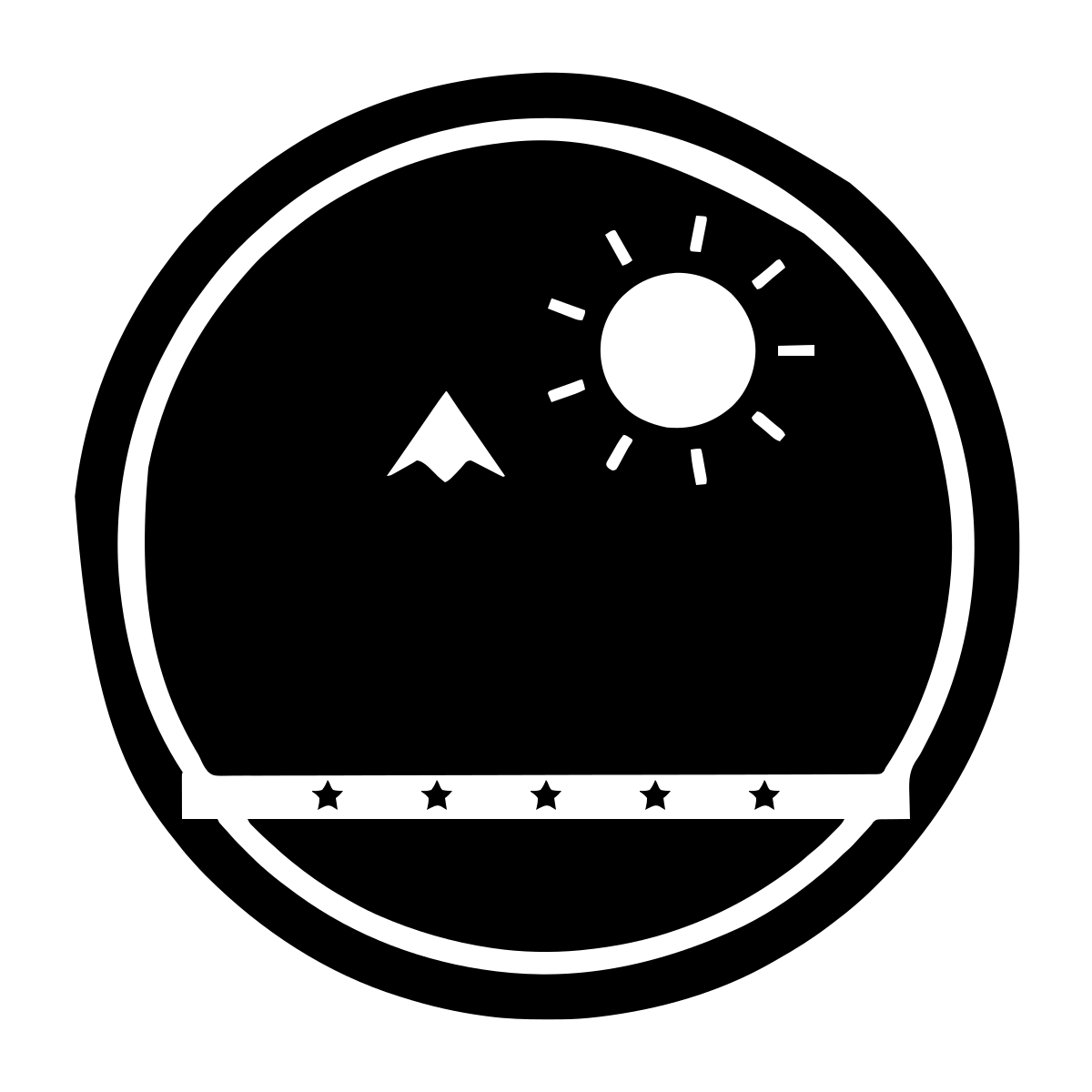
Print-ready PNG — 1200 × 1200 px, transparent background (source file 146.4 KB)


Website JPEG — 300 × 300 px on white, JPEG quality 75 (source file 13.3 KB)


Screenshot — 300 × 300 px on white, lossless PNG (source file 32.1 KB)


Measured 2026-10-21. Navy, Red, Gold and White count the fill colours closest to each ink. Raw numbers: results.json.
More than it has inks. The clean PNG traced into 13 fill colours: 5 navies, 1 red, 4 golds and 3 whites, most of them near-identical shades made from the soft edge pixels every exported logo has. The website JPEG gave 205, because compression adds noise of its own. Filter Speckle 16 cut that to 24, which is still six times the number of inks. Every extra shade leaves a choice for whoever prints it: is it one of your inks, or a new one?
How do I get the colours down to my ink count?
- In Illustrator, Edit ▸ Edit Colors ▸ Recolor Artwork can reduce artwork to a set number of colours, and limit them to a swatch library (Adobe: Limit colors in artworks).
- In Inkscape, Shift-click every shape that should share an ink, then pick the colour in Fill and Stroke: it's applied to all of them (Inkscape Beginners' Guide).
- Name your inks when you order. Image2Vector's SVG, EPS and PDF files describe colours as RGB values; none of them contains Pantone or other spot colours.
- Replace any shading with flat colour. Bonfire notes that screen printing can't print gradients or translucent elements, and suggests halftones or a solid colour instead (Bonfire).
How do I remove the background for a dark shirt?
Delete the background shape, but check which one it is first. Image2Vector flattens transparent areas onto white before tracing, so in Color mode the background becomes a white shape. The shapes are stacked: the first one in the file covers the whole canvas, and every other shape sits on top of it.
When there's room around the logo, that first shape is the white background, and deleting it leaves the logo on a transparent background. Our test logo filled most of its tightly cropped canvas, and there the first shape came out navy. Deleting it removed 40.9% of the logo, and the white background, a separate shape above it, stayed. With a transparent margin of 5% of the width on each side, the first shape was the white background:
| Transparent margin before tracing | Bottom shape in the SVG | Logo left after deleting it | Background still covered |
|---|---|---|---|
| None (cropped tight) | Navy (#1B2A4A), whole canvas | 59.1% | 99.9% |
| 5% of the width on each side | White (#FEFEFE), whole canvas | 99.9% | 0.3% |
| 10% of the width on each side | White (#FEFEFE), whole canvas | 99.9% | 0.2% |
Then look at the result over a dark background before you send it. Print white only where you want white ink: Bonfire suggests letting the shirt colour stand in for an ink where the two match, rather than paying for white ink on a white shirt.
Can I use Black & White for a one-colour print?
Only if your logo has no light colours. Black & White traces the darker part of the image in black, and on our logo it kept 99.3% of the navy and 100% of the red, but only 1.6% of the gold, so the sun and banner disappeared. The white details correctly stayed clear. For a one-colour print of a logo with light colours, trace in Color and set every shape that should print to your one ink.
| Source | Navy | Red | Gold | White |
|---|---|---|---|---|
| Print-ready PNG | 99.3% | 100.0% | 1.6% | 0.9% |
| Website JPEG | 99.8% | 99.8% | 8.4% | 4.3% |
| Screenshot | 99.8% | 99.8% | 8.6% | 4.4% |
Each cell is the share of that ink's area that came out black. The 300 px files were enlarged 4× to compare them with the original artwork.
SVG, EPS or PDF: which should I send?
Whichever your printer lists. Of the three printers above, all take EPS, two take PDF (Custom Ink's Design Lab doesn't), and one lists SVG. Image2Vector exports SVG free (1 conversion a day, no account) and EPS, PDF and DXF on Pro. The format doesn't change the shapes inside: an EPS made from a trace has the same colours to merge and the same background to delete.